Dataverse can now act as an MCP server. That means Claude, Claude Code, GitHub Copilot, and OpenAI Codex can read your tables, run queries, create records, and even create schema — against a real Power Platform environment, with your security roles and row-level security still applied.
NOTE: be carefull to run this on production environments and I recommend only using it on development or trial environments, once you tested everything you can then ask the AI to pack evrything on a solution you can then export and import to production.
The Dataverse MCP server went generally available on December 15, 2025. Since then the setup has gotten considerably simpler than it was during preview, and the client list has grown well past Copilot Studio. This post is the short version: what you need, what to click, and where the official documentation lives.
What you get
Once connected, the agent has a working tool surface against your environment:
| Tool |
What it does |
search |
Find table schemas, skills, and scopes by keyword |
describe |
Full details for any table, record, schema, or app |
read_query |
Run Dataverse SQL SELECT queries |
create_record / update_record / delete_record |
Row-level CRUD (delete requires explicit approval) |
create_table / update_table / delete_table |
Schema creation and modification |
upsert_skill / delete_skill |
Manage business skills and playbooks |
init_file_upload / commit_file_upload / file_download |
File operations via SAS URLs |
Worth stating plainly, because it surprises people: create_table and update_table are in the GA endpoint, not preview. You can hand an agent a data model and have it stand up the tables.
Step 1 — Enable the MCP server on the environment
This is admin-side and it's the step people skip.
- Go to the Power Platform admin center → Manage → Environments.
- Select your environment → Settings → Product → Features.
- Find Dataverse Model Context Protocol and turn on Allow MCP clients to interact with Dataverse MCP server.
- Select Advanced Settings — this is the allowed-clients list.
By default, only Copilot Studio is enabled. Anything else — Claude, Codex, VS Code — has to be added here explicitly. This is the governance model Microsoft introduced at GA, and it's the single most common reason a correctly configured client still gets rejected.
📄 Configure the Dataverse MCP server for an environment
Step 2 — Pick your connection path
There are two, and the choice matters more than the docs let on.
Local proxy
An npm package (@microsoft/dataverse) runs a local process that handles auth and talks to Dataverse on your behalf. Requires Node.js 18+.
Two prerequisites:
- A tenant admin grants consent once for the Dataverse CLI app:
https://login.microsoftonline.com/{your-tenant-id}/adminconsent?client_id=0c412cc3-0dd6-449b-987f-05b053db9457
- That same app ID (
0c412cc3-0dd6-449b-987f-05b053db9457) is set to Is Enabled = Yes in Advanced Settings. If it isn't listed, add it manually with any name.
Remote endpoint
Connect straight to https://<yourorg>.crm.dynamics.com/api/mcp. No local process, no Node.js. You register your own Entra app instead:
- Microsoft Entra admin center → Identity → Applications → App registrations → New registration.
- Note the Application (client) ID.
- API permissions → Add a permission → Microsoft APIs → Dynamics CRM → mcp.tools.
- Back in PPAC Advanced Settings, add a client entry with that client ID and set Is Enabled = Yes.
That mcp.tools permission is the one everybody misses. Without it the endpoint rejects you even though the client shows as allowed.
One more thing that isn't in the Microsoft docs: Entra ID doesn't support Dynamic Client Registration. Clients that expect to self-register against the authorization server can't. You have to supply the pre-registered client ID explicitly in the client's advanced connector settings — otherwise you get a generic connection failure with nothing useful in it.
📄 Connect to Dataverse with MCP in non-Microsoft clients
Step 3 — Configure the client
Claude Desktop
Settings → Developer → Edit Config, then:
json
{
  "mcpServers": {
    "Dataverse": {
      "command": "npx",
      "args": ["-y", "@microsoft/dataverse", "mcp", "https://yourorg.crm.dynamics.com"]
    }
  }
}
Quit and reopen — not just close the window. You'll get an auth prompt on first launch. Tools then appear under Search and tools.
For a faster, more reliable start, install globally and point at the binary directly instead of going through npx:
bash
npm install -g @microsoft/dataverse
Then use the resolved path (which dataverse) as command, with args: ["mcp", "<your org URL>"]. On a cold npx, the package download can outrun the client's initialization timeout and surface as a spurious "Server disconnected."
Claude Code
bash
claude mcp add dataverse -t stdio -- npx -y @microsoft/dataverse mcp https://yourorg.crm.dynamics.com
Restart, authenticate when prompted, then verify with /mcp. Test it with something like show me the tables in Dataverse or describe the account table.
Codex
Codex isn't named in the Microsoft docs, but it's a standard MCP host and it works. Codex stores MCP config in ~/.codex/config.toml, shared across the CLI, the IDE extension, and the ChatGPT desktop app on the same machine.
For the local proxy (STDIO):
bash
codex mcp add dataverse -- npx -y @microsoft/dataverse mcp https://yourorg.crm.dynamics.com
Or by hand in ~/.codex/config.toml:
toml
[mcp_servers.dataverse]
command = "npx"
args = ["-y", "@microsoft/dataverse", "mcp", "https://yourorg.crm.dynamics.com"]
For the remote endpoint (Streamable HTTP):
bash
codex mcp add dataverse --url https://yourorg.crm.dynamics.com/api/mcp
codex mcp login dataverse
Then confirm with codex mcp list and /mcp inside a session. If you scope the config to a project rather than ~/.codex/, remember Codex ignores project-local config in untrusted directories — either mark the project trusted or keep the server in the global config.
📄 Codex MCP documentation
----
Controlling what the agent can actually do
Once the connector is live, Claude Desktop lets you set permissions per tool, split into read-only and write/delete groups — four tools in the first, eleven in the second.
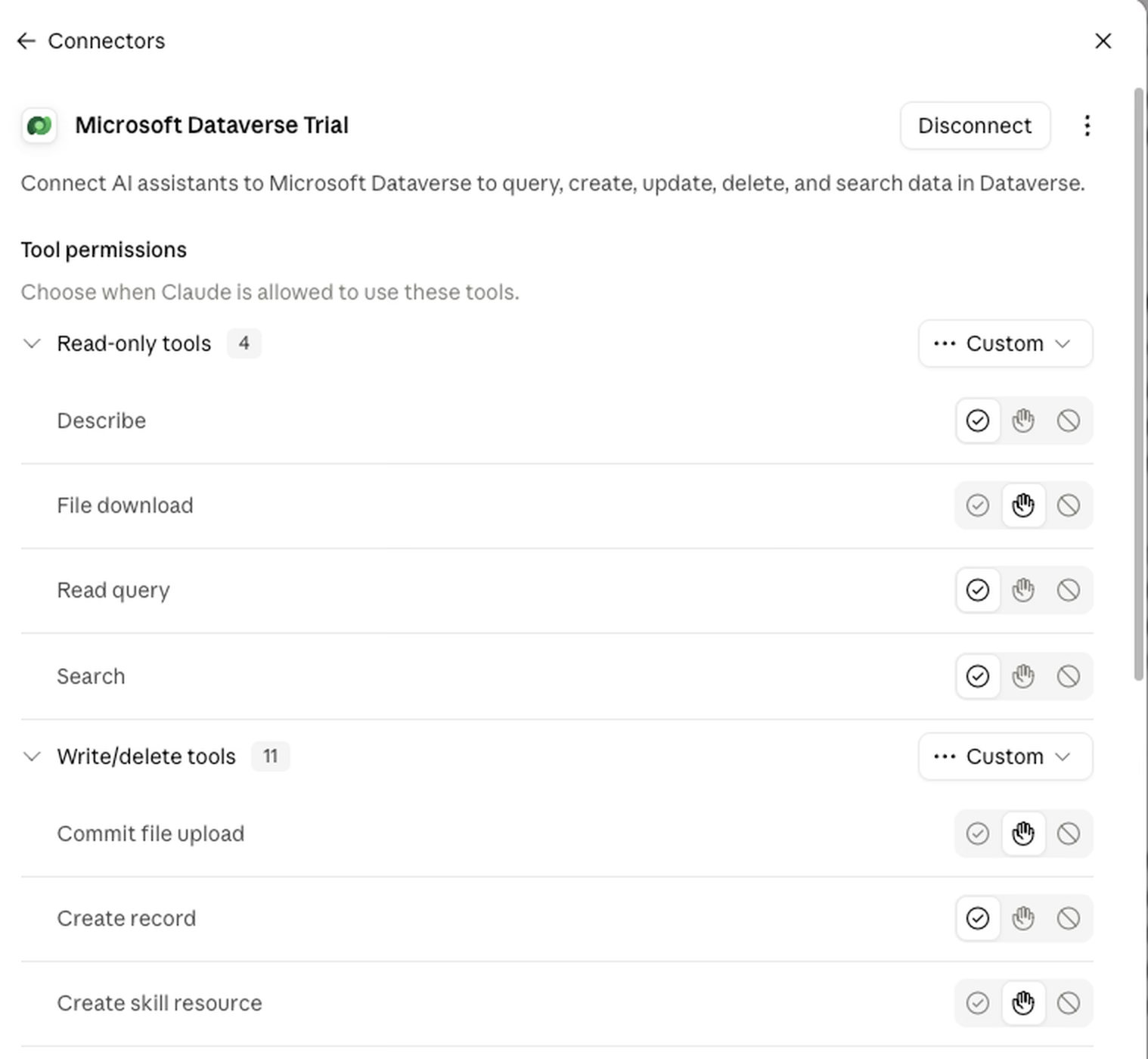
Tool permissions panel for the Dataverse connector, showing read-only and write/delete tools with per-tool allow, ask, and deny controls
Each tool gets one of three settings: always allow, ask every time, or block outright. This is worth spending two minutes on rather than accepting the defaults, because it gives you a second layer of control that’s independent of Dataverse itself:
- Dataverse security roles decide what the authenticated user can reach.
- Tool permissions decide what the agent is allowed to do with that reach.
A sensible starting posture: allow the read-only four (describe, read_query, search, plus file download) without prompting, set anything that creates or modifies to ask, and block the delete tools entirely unless you have a reason not to. delete_record and delete_table already require explicit approval server-side, but blocking them at the client means the question never gets asked in the first place.
If you’re pointing an agent at anything resembling a production environment, do both: a stripped-down application user and a tight tool permission set. Neither substitutes for the other.
Preview tools
If you want the newest tools before they hit GA, enable Allow MCP clients to interact with Dataverse MCP server (Preview version) in the same Features panel, then point at /api/mcp_preview. With the local proxy, append --preview to the command.
Preview tools aren't covered by support agreements and can change without notice. Fine for a lab, not for a client environment.
📄 Preview tools in Dataverse MCP server
Two things to know before you turn this on
Billing. As of December 15, 2025, Dataverse MCP tool usage is metered when accessed by an AI agent built outside Copilot Studio — unless you hold qualifying Dynamics 365 Premium licenses or a Microsoft 365 Copilot USL. If you're experimenting in a trial, check where you land on that.
Security. The MCP server respects Dataverse security roles and row-level security. The agent sees exactly what the authenticated user sees — no more. That's the right default, and it also means a stripped-down application user is the safest way to expose an environment to an agent.
Why this is worth your afternoon
The interesting part isn't querying data conversationally. It's that an agent can now build in Dataverse: create the tables, define the columns and relationships, populate realistic sample data, and iterate on the model in the same conversation where you're describing it. Work that used to be an afternoon of clicking through the maker portal is now a paragraph of English.
The setup is roughly thirty minutes end to end, most of it in the admin center.
📄 Connect to Dataverse with Model Context Protocol